
Microsoft Authenticator
Microsoft CorporationBusiness
4.6115.75K Reviews
- Version
- 6.2609.6214
- Installs
- 100.00M
- Age Rating
- Everyone
Screenshots
Our Review of Microsoft Authenticator
 Analysis by Appyee
For many people, the hardest part of signing in is not remembering a single password; it is finding the right account, responding to a security prompt, and doing it all when the phone is inconvenient to use. I find Microsoft Authenticator most useful when it turns that routine into a clear, repeatable step rather than another security chore. It is a free business app from Microsoft Corporation, with an Everyone age rating, and its central job is helping people verify sign-ins and manage account access from a phone.
Readability and navigation in daily use
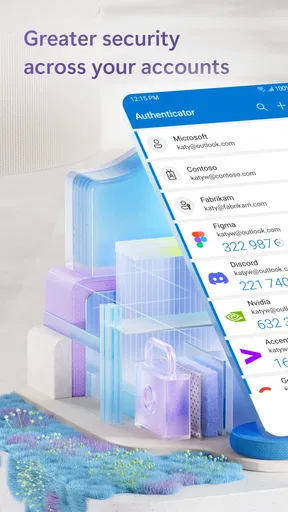
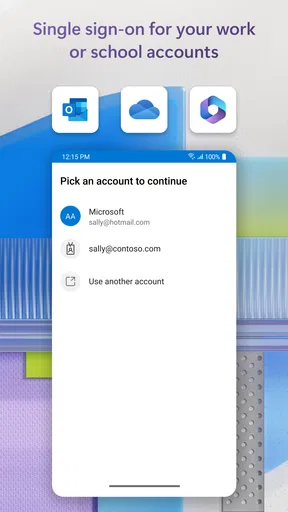
The app is built around account sign-in rather than a broad set of unrelated tools, which makes its purpose fairly easy to understand. When you add an account, the usual route is to scan a QR code; manual entry is available as another way to set one up. That matters if you are helping a family member or colleague configure an account: you can explain the basic flow without asking them to learn a complicated security vocabulary first.
I would still treat the first setup as a moment to slow down. A QR code is convenient, but the account being added should be clear before you scan it, especially if you have more than one work or personal login open on your computer. I like to label and test each account as I add it rather than rushing through a long setup. A successful test sign-in is a practical way to make sure the right entry is ready before you need it under pressure.
There is a useful distinction between an authentication app and a password manager, even when one app offers tools associated with both. Authenticator is primarily about proving that a sign-in is yours; its password autofill can reduce typing, but it does not remove the need to understand which account or service you are entering. If someone only wants a place to organize a large collection of passwords, a dedicated password manager may provide a workflow that feels more focused. For people already signing into Microsoft services, keeping verification close to those accounts can be more convenient.
A Trusty Digital Companion
So, what’s the deal with the Microsoft Authenticator? Imagine having a secure vault right on your phone that not only stores your passwords but also helps you log in without breaking a sweat. The app is available for both Android and iOS, making it a universal fit for almost any smartphone user out there.
Setting Up Your Digital Fortress
Getting started with the app is pretty straightforward. After downloading it, you just need to sign in with your Microsoft account. From there, you can add accounts by scanning QR codes or entering details manually. I found the process to be smooth and quick, which is great for someone like me who doesn’t have the patience for overly complicated setups.
Motor and sensory considerations
Authentication can be more demanding than it sounds if you have limited dexterity, low vision, or difficulty hearing alerts. A workflow that asks you to switch between a login screen and a phone, locate a response, and then return before the session expires can add friction. I would not assume that every person will find the same step easy. If you are setting it up for someone else, try a real sign-in together and notice where they need extra time or a different way to interact.
There are a few practical ways to make the process less stressful without relying on quick reactions. Keep the phone somewhere stable while tapping, increase the device’s text size if that helps, and avoid starting a sensitive sign-in when you are rushing through a crowded or noisy place. If a prompt or code is hard to notice, check that the account is available in the app before leaving home or beginning a work task. The app can support a more accessible routine, but it cannot by itself remove every barrier in the phone’s operating system, the service being accessed, or the sign-in method chosen by an organization.
Features That Make Life Easier
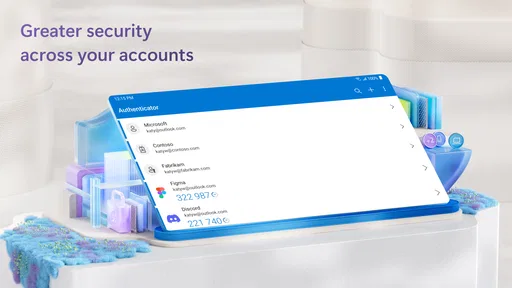
One of the standout features is the two-step verification. It’s like having a bouncer at the door of your digital accounts. Every time you log in, the app generates a unique code, adding an extra layer of security. It’s reassuring, especially when you’re managing sensitive info.
The app also syncs across devices, which is a lifesaver if you switch between your phone and tablet often. And let’s not forget the password autofill feature—it’s like having a superpower to fill in forms with just a tap. This feature alone has saved me a ton of time and frustration.
Situational access: when a quick prompt is not enough
A typical day shows both the value and the limits of an authenticator. Imagine logging into a work account from a borrowed laptop before a meeting. You enter your details, then need to check the phone for the verification step. If the phone is in another room, its battery is low, or you have no usable connection at that moment, the sign-in may take longer than expected. I recommend checking your account setup and keeping your phone available before relying on it for a time-sensitive task.
For travel, the important habit is preparation, not assuming that every verification route will behave the same way everywhere. Before leaving, make sure you can unlock the phone and open the app, and confirm that you know how to recover access to the accounts that matter most. If you are changing phones, do not treat installing the app on the new device as proof that every account has moved successfully. Test the important sign-ins while you still have access to the old device and can resolve problems calmly.
That distinction is especially useful for people who use a work account managed by an employer or school. Some sign-in choices may be controlled by the organization, so the app’s presence does not guarantee that you can replace every required step with your preferred one. If you are locked out, contact the account administrator or use the service’s recovery process rather than repeatedly guessing. This is a security tool, not a universal override for an organization’s access rules.
Staying Secure and In Control
Security is, of course, a big deal, and Microsoft Authenticator doesn’t skimp on that. The app requires you to set up a biometric lock or a PIN, ensuring that only you can access your treasure trove of passwords. Plus, it doesn’t store your passwords on its servers, which is a nice touch for privacy-conscious folks.
If you’re worried about losing your phone, don’t sweat it. You can back up your credentials to your Microsoft account. It’s like having a digital insurance policy that saves you from potential headaches.
Remaining barriers and sensible trade-offs
A phone-based authenticator concentrates useful access in one device, which is also its main practical weakness. If the phone is lost, damaged, locked, or left behind, the very tool intended to make sign-in easier may be unavailable. Backup can help with recovery, but it is worth checking that you understand the account recovery route before an emergency. I would also keep recovery details for important services somewhere safe and separate from the phone, following each service’s own instructions.
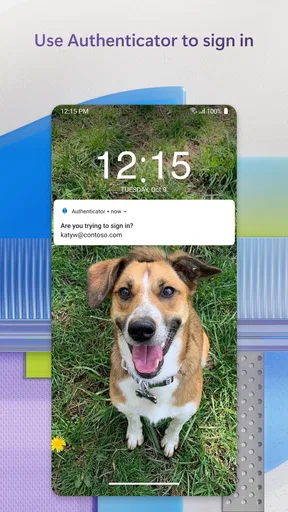
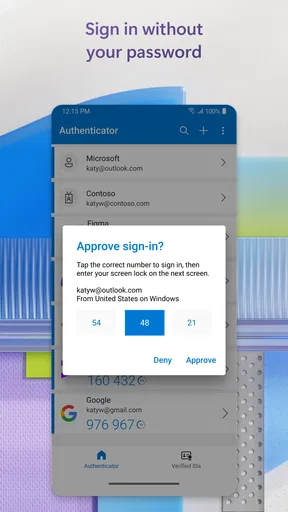
Another trade-off is the attention a prompt demands. Approving a sign-in without checking what you are approving can turn a protective step into a reflex. When a request appears unexpectedly, pause and consider whether you just initiated that login. If you did not, do not approve it. This small habit is more useful than treating every notification as routine, particularly for accounts that hold work files or personal information.
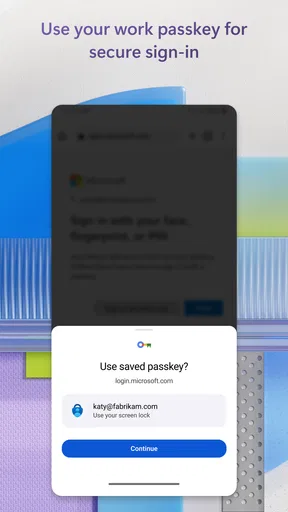
Compared with receiving codes by text, an authenticator keeps verification in a dedicated app rather than making the message inbox part of the process. That can be tidier, but it still depends on having the phone and being able to use it. A built-in passkey or security key may be a better fit for someone who wants a different sign-in routine and whose services support that option. Meanwhile, a password manager is the clearer choice when the main need is organizing and filling passwords across many services. I see Authenticator as most compelling when verification itself is the problem to solve, not as a reason to abandon every other security tool.
Who benefits most—and who may prefer another route
I would recommend it to people who regularly sign into Microsoft accounts, handle several accounts that support authenticator codes, or want to reduce dependence on typing a code from a separate message. It can also make sense for someone who switches between a phone and tablet and values having account access tools in one familiar place. Microsoft Authenticator has an average rating of 4.6 from around 2.4 million ratings, and it has been installed over 100 million times, which suggests that it is a well-established option rather than a niche utility.
It may be the wrong fit if you do not want authentication tied closely to a smartphone, if handling phone prompts is difficult for you, or if your organization requires another method. A hardware security key, a different authenticator, or a service’s own sign-in option may suit those situations better. The app is free, runs on Android and iOS, and its current version is 6.2512.8111, with Android 8.0 as the minimum operating system requirement. Those details are useful to check before installing it on an older device.
My Final Take
So, is Microsoft Authenticator worth it? Absolutely. For anyone looking to streamline their digital life while keeping it secure, this app is a no-brainer. It’s user-friendly, packed with features, and gives you peace of mind, all for the unbeatable price of free. If you’re not using it yet, you might just be missing out on the easiest way to stay secure online.
My recommendation comes with one qualification: set it up when you have time, test the accounts you depend on, and decide how you will recover access if the phone is unavailable. For someone who can comfortably use a smartphone and wants a practical companion for sign-ins, it is an easy tool to keep close. For someone who needs a phone-independent method or finds prompts difficult to operate, choosing a different verification route is not a failure of security; it is a more realistic fit.
Privacy and Permissions
See what permissions an app requests and how it handles your data.
- Identity
- add or remove accounts
- Location
- approximate location (network-based), precise location (GPS and network-based)
- Camera
- take pictures and videos
- Other
- view network connections, create accounts and set passwords, full network access, close other apps, control Near Field Communication, run at startup, draw over other apps, use accounts on the device, control vibration, prevent device from sleeping
Verdict
Strengths of Microsoft Authenticator
- Seamless integration with Microsoft services.
- Easy setup with QR code scanning.
- Supports multi-factor authentication.
- Passwordless sign-in option available.
- Secure cloud backup for accounts.
Limitations of Microsoft Authenticator
- Lacks biometric authentication for some devices.
- No desktop app available for use.
- Limited customization of notification settings.
- Can be complex for non-technical users.
- Incompatible with certain older devices.
Other Releases by Microsoft Corporation
View All
Microsoft OneDrive
Productivity4.6

Microsoft OneNote: Save Notes
Productivity4.6

Link to Windows
Productivity4.0

Microsoft PowerPoint
Productivity4.8
Similar Picks in This Category
View All
LinkedIn: Community & Network
LinkedIn3.8

Zoom Workplace
zoom.com4.1

Microsoft Teams
Microsoft Corporation4.6

Meta Business Suite
Meta Platforms, Inc.4.6

Webex Meetings
Cisco Systems, Inc.4.5

TeamViewer Remote Control
TeamViewer4.4
You May Also Like
View All

Frequently Asked Questions
What is Microsoft Authenticator and how does it work?
Microsoft Authenticator is a security app that provides multi-factor authentication for securing your online accounts. It works by generating time-based one-time passwords (TOTPs) or sending push notifications for verification, ensuring that only you can access your accounts even if your password is compromised.
Is Microsoft Authenticator free to use?
Yes, Microsoft Authenticator is completely free to download and use. It offers a wide range of features without any cost, making it an excellent choice for anyone looking to enhance their online security through multi-factor authentication.
Can I use Microsoft Authenticator with non-Microsoft accounts?
Absolutely! Microsoft Authenticator supports a variety of third-party services, including Google, Facebook, and others. You can add these accounts to the app and use it to generate authentication codes or approve sign-in requests for a variety of platforms.
How do I set up Microsoft Authenticator with my accounts?
Setting up Microsoft Authenticator is straightforward. After downloading the app, you can add accounts by scanning a QR code provided by the service you wish to secure or manually entering the details. Follow the on-screen instructions for each account to complete the setup.
What should I do if I lose access to my Microsoft Authenticator app?
If you lose access to Microsoft Authenticator, you can regain access by using recovery options provided by the accounts you have secured. It's crucial to have backup methods, like recovery codes or alternative email addresses, set up for each account to ensure you don't get locked out.
